

Connect Attio
- Go to Integrations in the Clustr dashboard and select Attio.
- Click Connect Attio. You’ll be redirected to Attio to authorize access.
- Once authorized, you’ll be returned to Clustr with your workspace connected.
Only one CRM can be active at a time. If HubSpot or Salesforce is already connected, disconnect it before connecting Attio.
Enable the Widget
After connecting, you need to add the Clustr widget to your Attio record layouts. This is a one-time setup per record type; repeat for people, companies, and deals.1
Open the page configurator
Open any people (or company, or deal) record in Attio. Click the ⋯ menu in the top-right corner, then select Configure page.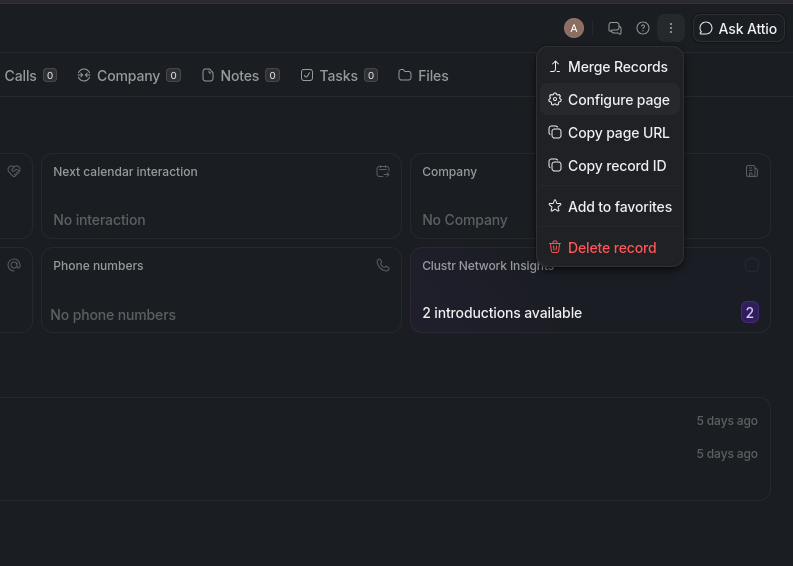
2
Add the Clustr widget
Click + Add widget. A widget picker opens. Under Apps, select Clustr Network Insights.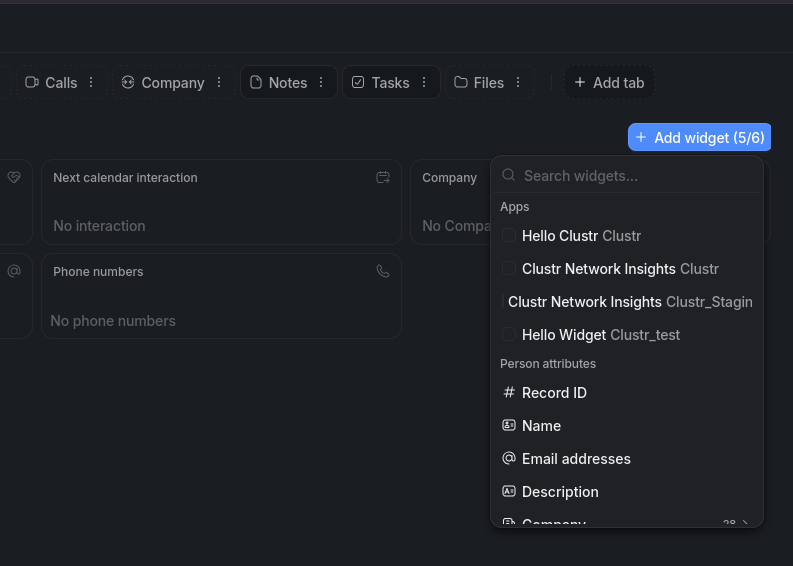
3
Save
Close the configurator. The Clustr widget now appears on all records of that type.
How It Works
People and companies in Attio are automatically matched to your Clustr network via domain and LinkedIn URL. Each widget shows who in your network can make an introduction, ranked by confidence.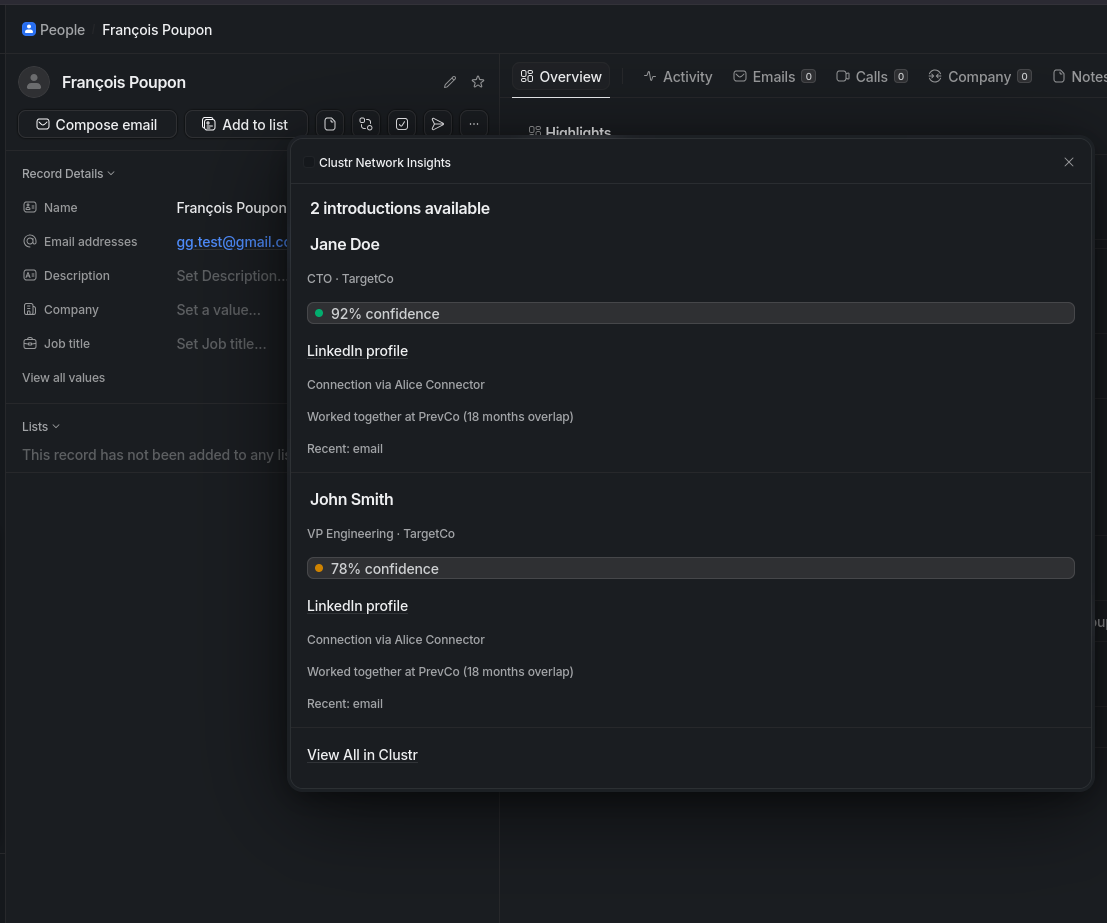
- A confidence score for the referral path
- The connector who can make the introduction and how they’re connected
- Shared work history and recent engagement signals
- A View All in Clustr link to explore the full list
Settings
Once connected, you can configure write permissions and field mappings from the Attio integration settings page.Write to Attio
Field Mappings
Clustr maps its internal data model to your Attio attribute slugs. The defaults match Attio’s standard schema. Change them only if your workspace uses custom attributes. People
Companies
Deals
The Email field is fixed to
email_addresses and cannot be remapped. Attio requires this attribute for contact deduplication.