

Connect Salesforce
- Go to Integrations in the Clustr dashboard and select Salesforce.
- Click Connect Salesforce. You’ll be redirected to Salesforce to authorize access.
- Once authorized, you’ll be returned to Clustr with your org connected.
Only one CRM can be active at a time. If HubSpot is already connected, disconnect it before connecting Salesforce.
Enable the Cards
After connecting, you need to add the Clustr components to your Salesforce page layouts. This is a one-time setup per record type; repeat for opportunities, contacts, and accounts.1
Open the page editor
Open any opportunity (or contact, or account) in Salesforce. Click the gear icon (⚙️) in the top-right corner, then select Edit Page.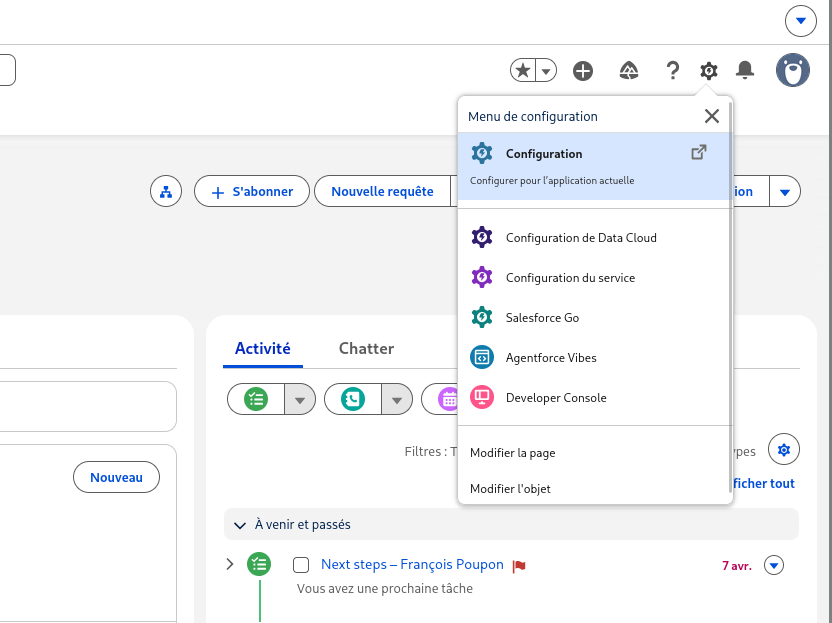
2
Find Clustr in the component panel
The Lightning App Builder opens. In the left panel, type Clustr in the component search box. The Clustr card appears under Custom components.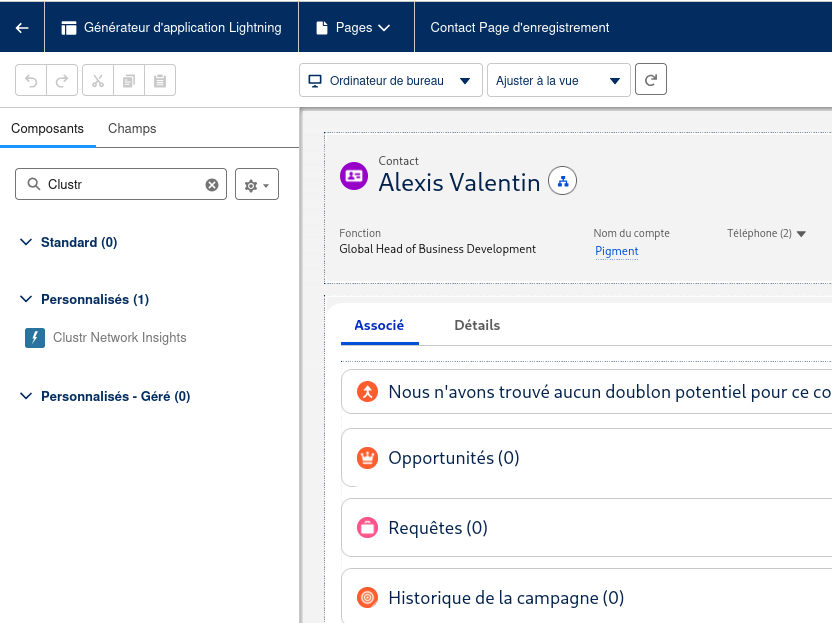
3
Drag the component onto the page
Drag the Clustr component from the left panel onto the desired section of the page layout on the right.
4
Save and activate
Click Save. If prompted to activate the page, click Activate and assign it as the Org Default so it appears for all users.
How It Works
Contacts and accounts in Salesforce are automatically matched to your Clustr network via domain and LinkedIn URL. Their latest CRM activity is shown alongside relationship data. Each card shows:- A confidence score for each referral path
- The connector who can make the introduction
- Shared work history and recent engagement activity (calls, emails, meetings)
- An In CRM flag for prospects already in Salesforce, with a direct link to their record
- Links to each prospect’s LinkedIn profile and Clustr page
The Cards
Every card has two tabs. The first tab shows how to reach people (your paths in). The second tab shows what you can leverage (who can be introduced through them).Opportunities
Opportunities
- At : prospects reachable through your network
- From : who opportunity contacts can introduce you to
Contacts
Contacts
- From: who they can introduce you to
- To : who can introduce you to them
Accounts
Accounts
- At : prospects reachable through your network
- From : your contacts who can intro elsewhere
Settings
Once connected, you can configure write permissions and field mappings from the Salesforce integration settings page.Write to Salesforce
Field Mappings
Clustr maps its internal data model to your Salesforce field API names. The defaults match Salesforce’s standard schema. Change them only if your org uses custom fields. Contacts
Accounts
Opportunities