> ## Documentation Index
> Fetch the complete documentation index at: https://docs.clustr-ai.com/llms.txt
> Use this file to discover all available pages before exploring further.
# HubSpot Integration
> Connect HubSpot to surface referral intelligence on deals, contacts, and companies
Clustr's native HubSpot integration surfaces your network intelligence directly inside HubSpot through **app cards** on deal, contact, and company records.
## Connect HubSpot
1. Go to **Integrations** in the Clustr dashboard and select **HubSpot**.
2. Click **Connect HubSpot**. You'll be redirected to HubSpot to authorize access.
3. Once authorized, you'll be returned to Clustr with your portal connected.
Only one CRM can be active at a time. If Salesforce is already connected, disconnect it before connecting HubSpot.
## Enable the Cards
After connecting, you need to add the Clustr cards to your HubSpot record layouts. This is a one-time setup; repeat for deals, contacts, and companies.
Open any deal (or contact, or company) in HubSpot. In the top right, click **Customize record**. You'll see the existing cards listed in the right sidebar.
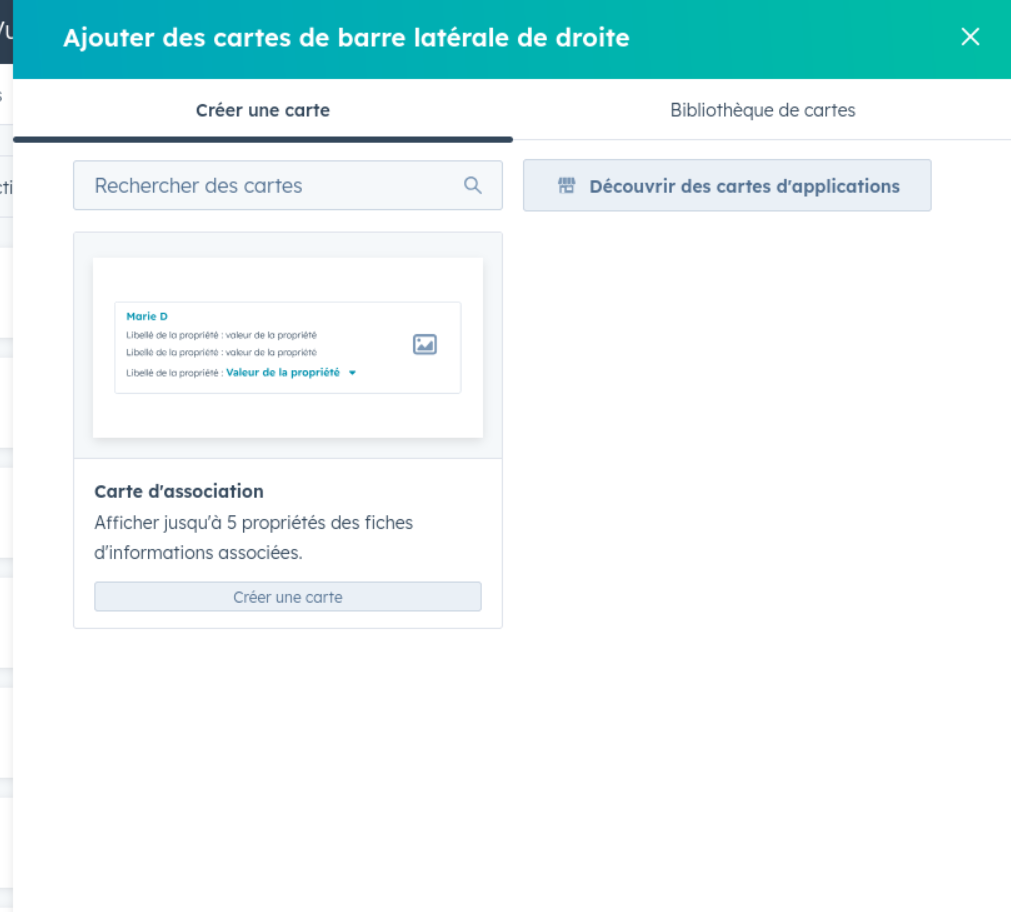
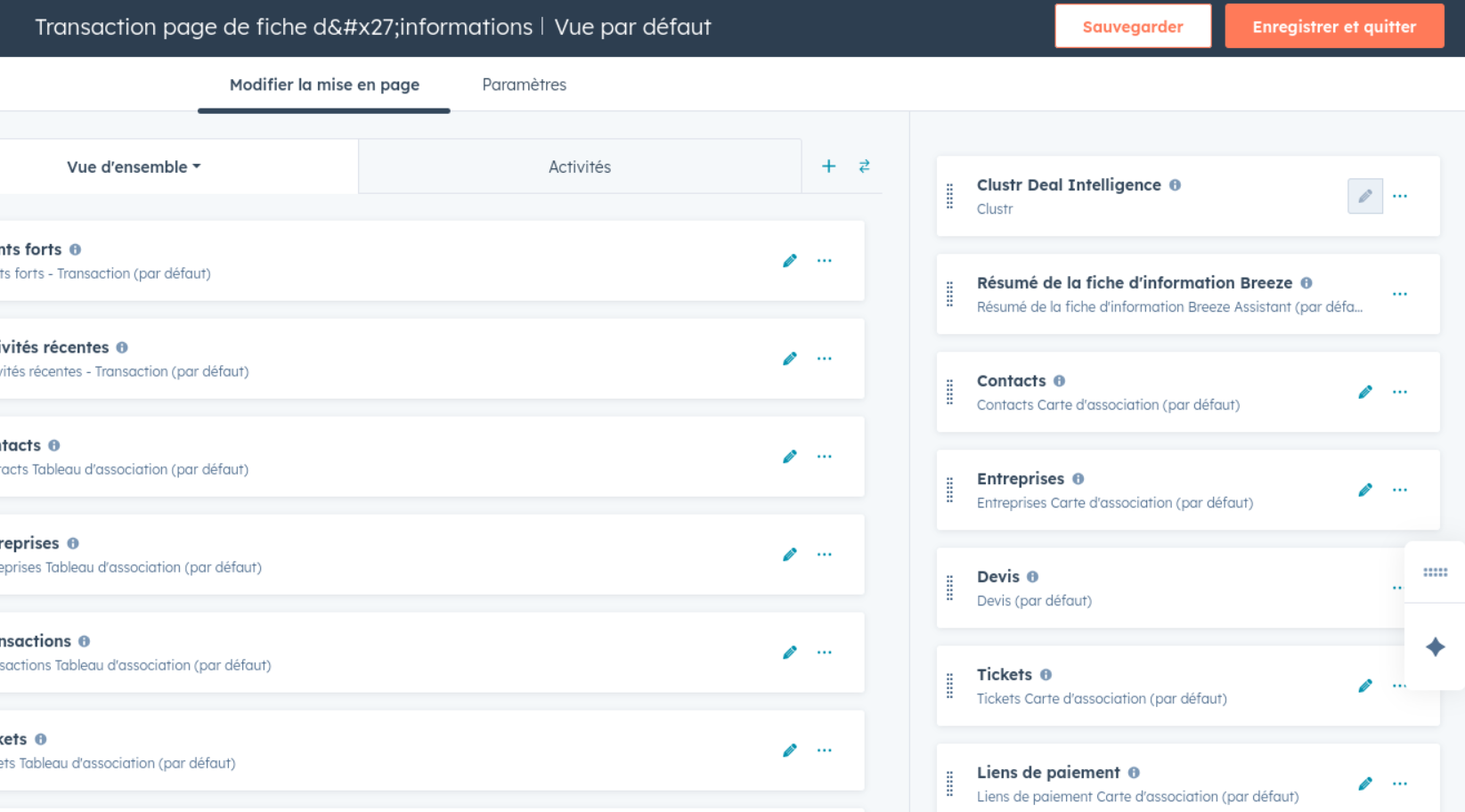 In the right sidebar, hover between two existing cards. A small **+** button appears between them. Click it to open the "Add cards" panel.
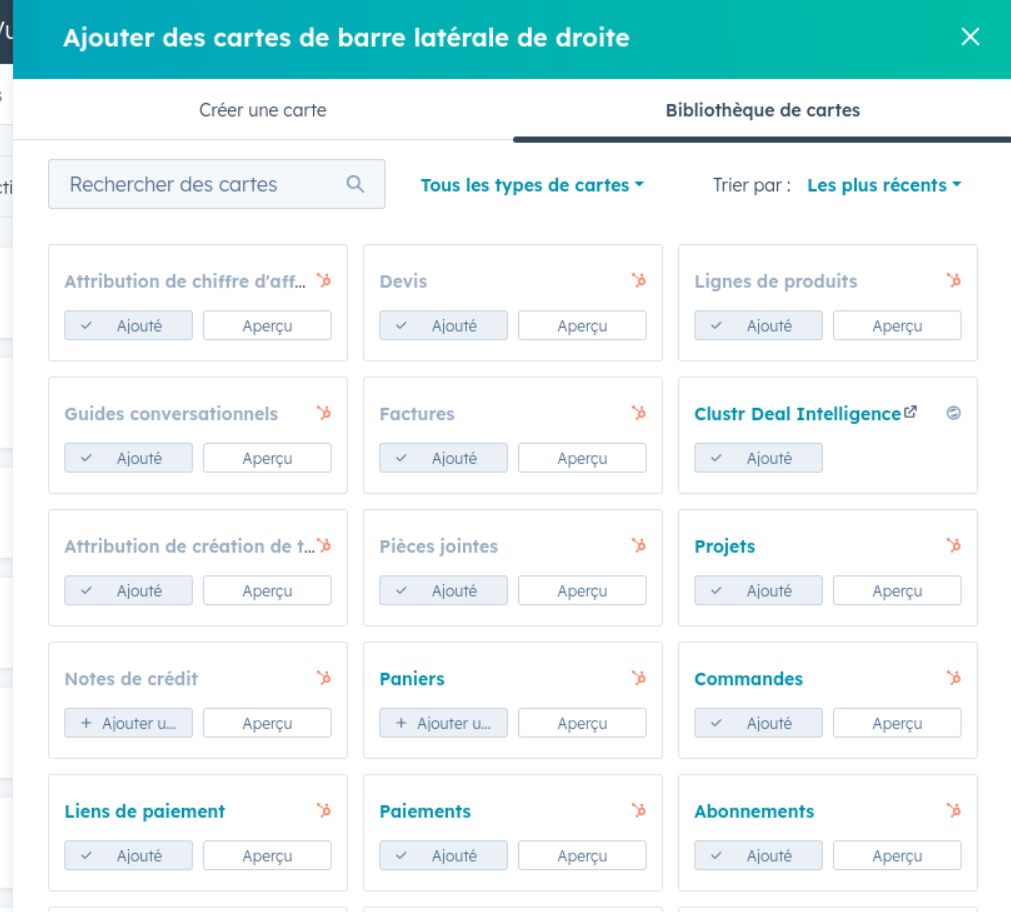
 In the panel that opens, switch to the **Card library** tab (second tab). Find the Clustr card and click **Add**.
 Click **Save and exit** (top right). The card now appears on all records of that type.
**Card names to look for:**
| Record type | Card name |
| ----------- | ------------------------ |
| Deals | Clustr Deal Intelligence |
| Contacts | Clustr Network Insights |
| Companies | Clustr Company Insights |
## How It Works
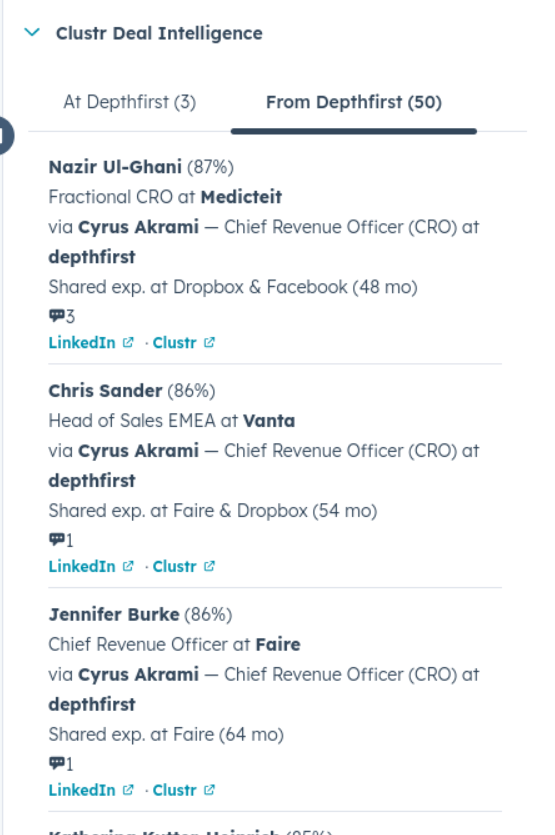
Contacts and companies in HubSpot are automatically matched to your Clustr network via domain and LinkedIn URL. Their latest CRM activity is shown alongside relationship data.
Each card shows:
* A **confidence score** for each referral path
* The **connector** who can make the introduction
* Shared work history and recent engagement activity (calls, emails, meetings)
* An **In CRM** flag for prospects already in HubSpot, with a direct link to their record
* Links to each prospect's LinkedIn profile and Clustr page
From any card you can **Import to HubSpot** to push prospects into your CRM, or **See all in Clustr** to explore the full list.
Click **Save and exit** (top right). The card now appears on all records of that type.
**Card names to look for:**
| Record type | Card name |
| ----------- | ------------------------ |
| Deals | Clustr Deal Intelligence |
| Contacts | Clustr Network Insights |
| Companies | Clustr Company Insights |
## How It Works
Contacts and companies in HubSpot are automatically matched to your Clustr network via domain and LinkedIn URL. Their latest CRM activity is shown alongside relationship data.
Each card shows:
* A **confidence score** for each referral path
* The **connector** who can make the introduction
* Shared work history and recent engagement activity (calls, emails, meetings)
* An **In CRM** flag for prospects already in HubSpot, with a direct link to their record
* Links to each prospect's LinkedIn profile and Clustr page
From any card you can **Import to HubSpot** to push prospects into your CRM, or **See all in Clustr** to explore the full list.
 ## The Cards
Every card has two tabs. The first tab shows **how to reach** people (your paths in). The second tab shows **what you can leverage** (who can be introduced through them).
## The Cards
Every card has two tabs. The first tab shows **how to reach** people (your paths in). The second tab shows **what you can leverage** (who can be introduced through them).
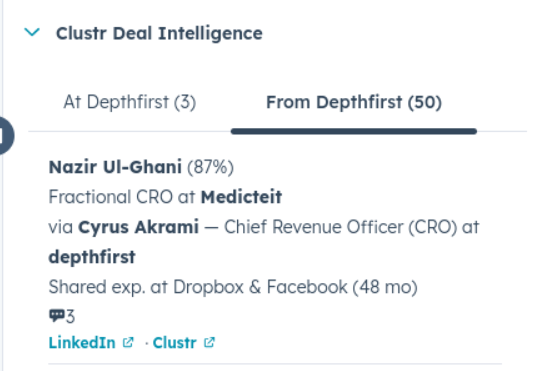 * **At {company}**: prospects reachable through your network
* **From {company}**: who deal contacts can introduce you to
Closed deals default to the "From" tab.
* **From**: who they can introduce you to
* **To {contact}**: who can introduce you to them
If the contact isn't in Clustr yet, you'll see an import prompt.
* **At {company}**: prospects reachable through your network
* **From {company}**: your contacts who can intro elsewhere
## Settings
Once connected, you can configure write permissions and field mappings from the HubSpot integration settings page.
### Write to HubSpot
| Permission | Description |
| ---------------- | -------------------------------------------------------------------------------------- |
| Create Contacts | Push new people Clustr discovers into HubSpot |
| Create Companies | Create company records when a contact's employer is missing (requires Create Contacts) |
| Tasks & Notes | Log warm-intro requests as tasks and add notes to records |
### Field Mappings
Clustr maps its internal data model to your HubSpot field names. The defaults match HubSpot's standard schema. Change them only if your portal uses custom properties.
**Contacts**
| Clustr field | Default HubSpot field |
| ------------ | --------------------- |
| LinkedIn URL | `hs_linkedin_url` |
| Email | `email` |
| First Name | `firstname` |
| Last Name | `lastname` |
| Phone | `phone` |
| Job Title | `jobtitle` |
**Companies**
| Clustr field | Default HubSpot field |
| ------------ | --------------------- |
| Name | `name` |
| Domain | `domain` |
**Deals**
| Clustr field | Default HubSpot field |
| ------------ | --------------------- |
| Name | `dealname` |
| Amount | `amount` |
| Stage | `dealstage` |
### Sync
Click **Sync Now** to trigger a manual sync between HubSpot and Clustr. The integration also syncs automatically in the background.
* **At {company}**: prospects reachable through your network
* **From {company}**: who deal contacts can introduce you to
Closed deals default to the "From" tab.
* **From**: who they can introduce you to
* **To {contact}**: who can introduce you to them
If the contact isn't in Clustr yet, you'll see an import prompt.
* **At {company}**: prospects reachable through your network
* **From {company}**: your contacts who can intro elsewhere
## Settings
Once connected, you can configure write permissions and field mappings from the HubSpot integration settings page.
### Write to HubSpot
| Permission | Description |
| ---------------- | -------------------------------------------------------------------------------------- |
| Create Contacts | Push new people Clustr discovers into HubSpot |
| Create Companies | Create company records when a contact's employer is missing (requires Create Contacts) |
| Tasks & Notes | Log warm-intro requests as tasks and add notes to records |
### Field Mappings
Clustr maps its internal data model to your HubSpot field names. The defaults match HubSpot's standard schema. Change them only if your portal uses custom properties.
**Contacts**
| Clustr field | Default HubSpot field |
| ------------ | --------------------- |
| LinkedIn URL | `hs_linkedin_url` |
| Email | `email` |
| First Name | `firstname` |
| Last Name | `lastname` |
| Phone | `phone` |
| Job Title | `jobtitle` |
**Companies**
| Clustr field | Default HubSpot field |
| ------------ | --------------------- |
| Name | `name` |
| Domain | `domain` |
**Deals**
| Clustr field | Default HubSpot field |
| ------------ | --------------------- |
| Name | `dealname` |
| Amount | `amount` |
| Stage | `dealstage` |
### Sync
Click **Sync Now** to trigger a manual sync between HubSpot and Clustr. The integration also syncs automatically in the background.